
Add the Plugin to Your Website
Under the preview, Embed Code holds everything: your key and every setting you chose.
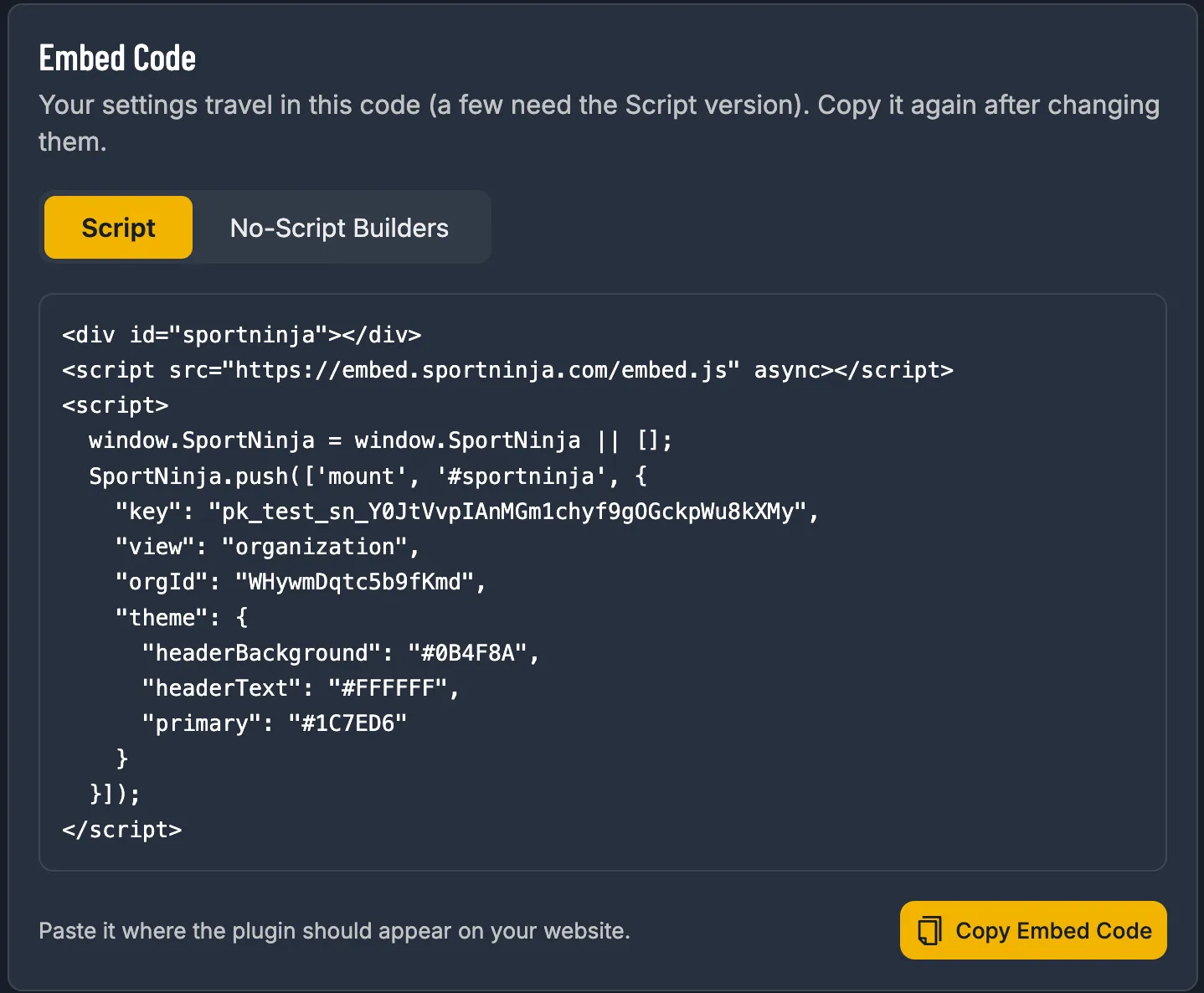
Choose the Code Version
Section titled “Choose the Code Version”| Version | Use it when |
|---|---|
| Script (recommended) | You can paste HTML that includes <script> tags. Supports every setting. |
| No-Script Builders | Your site builder strips inline scripts. Your settings go into the HTML element itself. A few settings aren’t supported, and the page tells you which. |
Select Copy Embed Code, then paste it where the plugin should appear.
WordPress
Section titled “WordPress”- Edit the page where the plugin should appear.
- Add a Custom HTML block (select +, then search “HTML”).
- Paste the code and select Update.
- Select Add Elements › Embed Code › Embed HTML.
- Choose Code, paste, and select Update.
- Drag the box to the size you want, then Publish.
Squarespace
Section titled “Squarespace”- Edit the page and add a Code block.
- Paste the code and save.
GoDaddy
Section titled “GoDaddy”- Add a section, search for HTML, and paste the code.
- If the plugin says it isn’t allowed on your website, turn on Allow Hidden Website Addresses on your key. See Create a Key.
Full developer referenceEvery option and theme key, data attributes, the JavaScript API and errors.
The Script version renders a mount point, loads the loader asynchronously, and queues a mount call:
<div id="sportninja"></div><script src="https://embed.sportninja.com/embed.js" async></script><script> window.SportNinja = window.SportNinja || []; SportNinja.push(['mount', '#sportninja', { "key": "<your plugin key>", "view": "competition", "competitionId": "<competition id>", "initialTab": "standings", "theme": { "mode": "dark", "primary": "#004FFF" } }]);</script>The No-Script version uses data-* attributes instead:
<div data-sportninja data-key="<your plugin key>" data-view="competition" data-competition-id="<competition id>" data-mode="dark"></div><script src="https://embed.sportninja.com/embed.js" async></script>Notes:
- Origins: the plugin only loads on the key’s Hosted Websites. Add
http://localhost:<port>for local development. - Only changed options are written, so the snippet stays small. Values the plugin would reject never make it into the code.
- Escaping:
<inside the options is written as<, so text like</script>can’t break the page. - Single-page apps: render the mount element before the
mountcall runs. The queue (window.SportNinja.push) works before or after the loader arrives.