
Plugin Settings Explained
Every setting is optional. Leave something alone and the plugin uses its default. Only the options you change are written into your embed code, so the code stays short.
The settings are in four numbered groups. Select a group to open it.
1. Embed
Section titled “1. Embed”The page your plugin opens on.
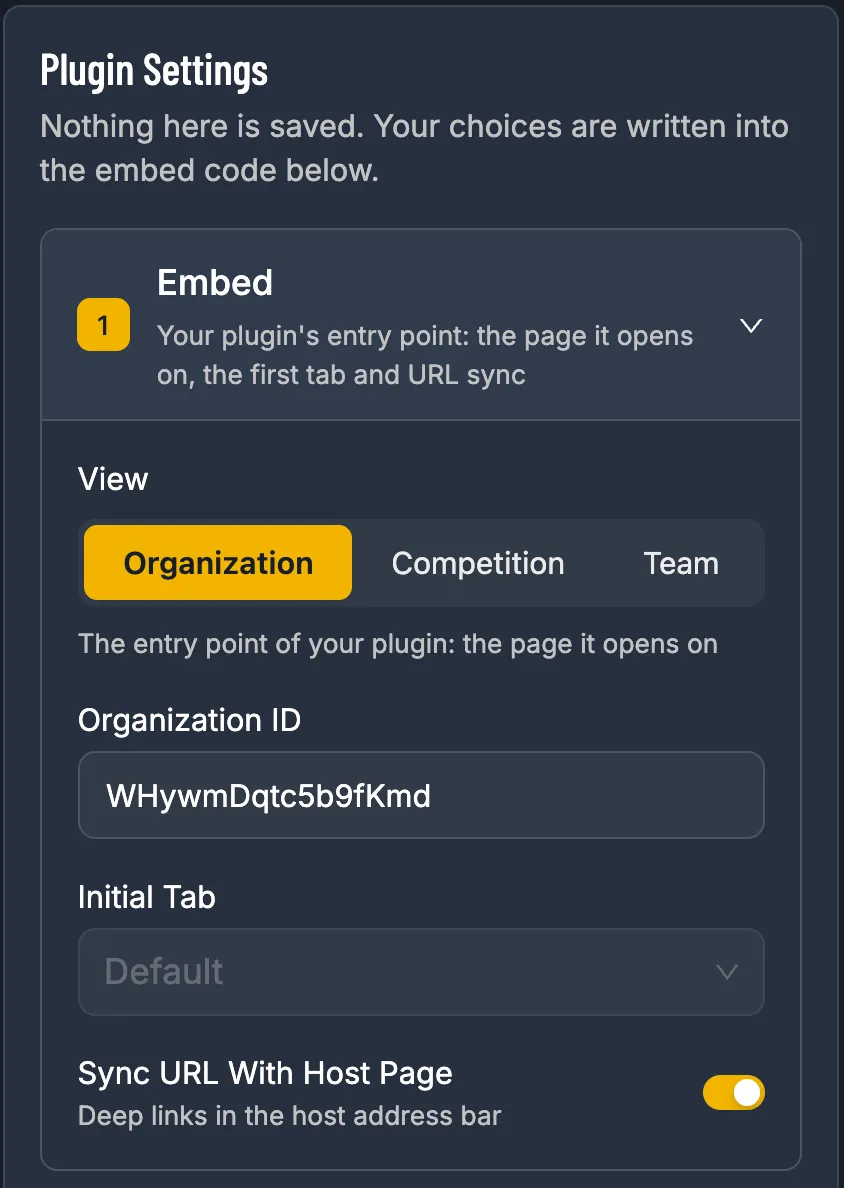
| Setting | What it does |
|---|---|
| View | The plugin’s entry point: Organization, Competition or Team. |
| Organization / Competition / Team ID | Which one to show. See where to find an ID. |
| Initial Tab | The tab that’s open first, like Schedule or Standings. Default uses the plugin’s own choice. Changing the View resets it. |
| Sync URL With Host Page | On: when a visitor opens a game or a team, your website’s address changes too, so they can bookmark or share that exact page. Off: your address stays the same. |
{ "key": "pk_sn_…", "view": "competition", "competitionId": "aB12cD34eF56gH78", "initialTab": "standings", // Initial Tab; left out for Default}2. Tabs
Section titled “2. Tabs”Show or hide tabs. There’s a section for each kind of page: Organization, Competition and Team. The plugin moves between them (a visitor can go from your organization to a competition to a team), so you can hide tabs on all three, whatever your View is.
| Page | Tabs you can hide |
|---|---|
| Organization | Sub-orgs, Competitions, Teams, Locations, Registrations |
| Competition | Playoffs, Schedule, Standings, Statistics, Suspensions, Communication |
| Team | Schedule, Statistics, Roster, Communication |
Hidden tabs are listed under their page type, each set to false. Tabs you leave on aren’t written.
{ "view": "organization", "tabs": { "organization": { "subOrgs": false }, "competition": { "playoffs": false, "suspensions": false }, },}3. Theme
Section titled “3. Theme”How the plugin looks. Match it to your website.
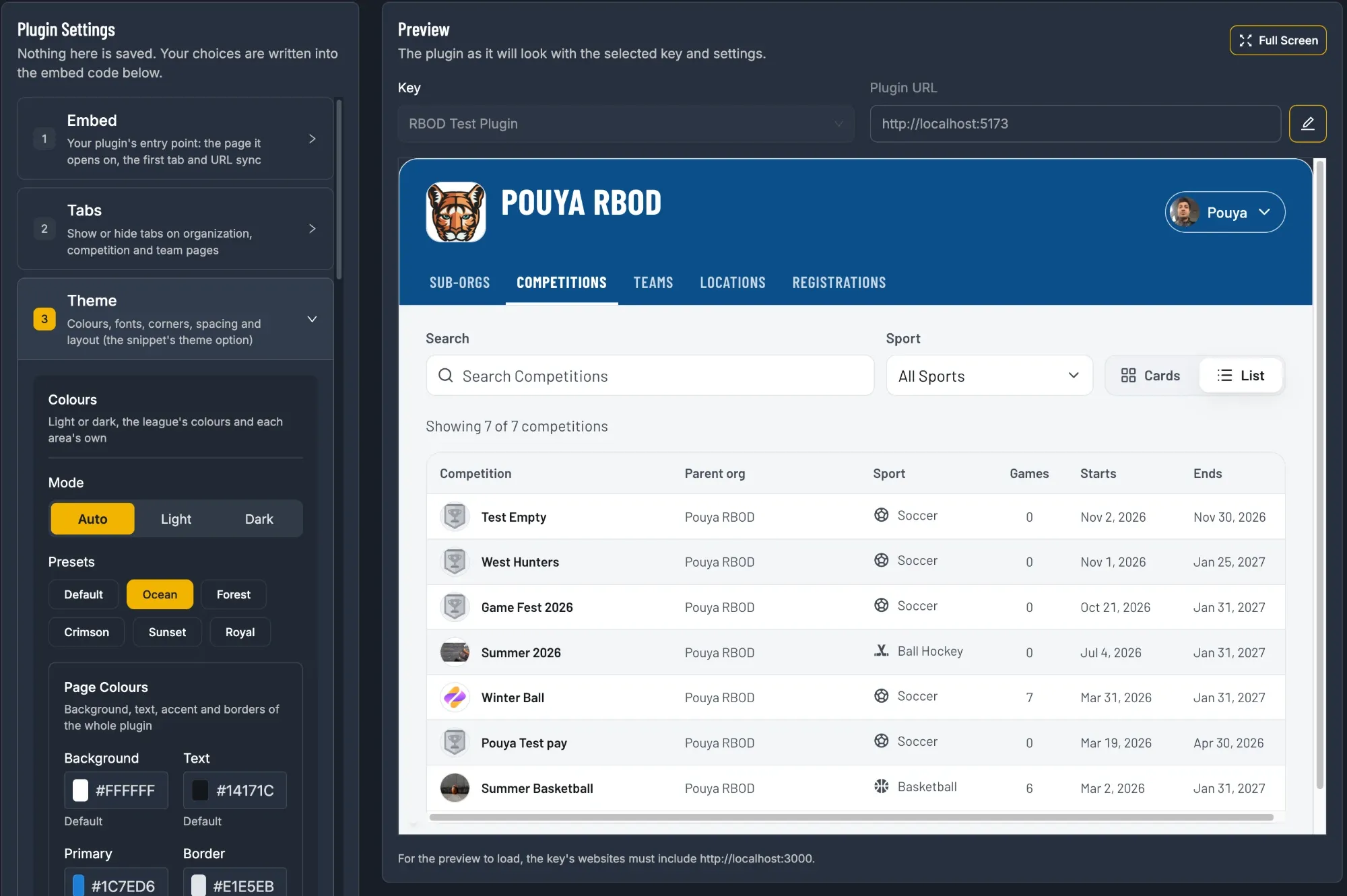
Colours
Section titled “Colours”| Setting | What it does |
|---|---|
| Mode | Auto follows the visitor’s device (light or dark). Light or Dark fixes it. |
| Presets | One-click colour sets: Default, Ocean, Forest, Crimson, Sunset, Royal. A preset sets the header and accent colours; you can still change any colour afterwards. |
| Page Colours | Background, Text, Primary (your accent colour: buttons, active tabs, highlights) and Border. Type a hex code like #004FFF, or use the colour picker. Default puts a colour back. |
| Header Colours | The band at the top with your logo, title and tabs: Background and Text. |
| Content Area Colour | Behind the lists, tables and filters. Off: a shade of your background. |
| Button, Link, Input, Schedule Colours | Fine-tune each part on its own. Off: the plugin picks matching colours for you. |
| Scoreboard Style | The game page scoreboard: a Sport Photo, or your Header Colours. |
| Playoffs Bracket Colour | Behind the playoffs bracket. |
Every colour goes in the theme option. A preset writes its colours, never its name: Ocean is these three lines.
{ "theme": { "mode": "dark", // left out for Auto "headerBackground": "#0B4F8A", // Ocean "headerText": "#FFFFFF", // Ocean "primary": "#1C7ED6", // Ocean },}| Setting | Key in theme |
|---|---|
| Page Colours | background, text, primary, border |
| Header Colours | headerBackground, headerText |
| Content Area Colour | contentBackground |
| Button Colours | buttonBackground, secondaryButtonBackground, secondaryButtonBorder, outlineButtonColor |
| Link Colour | linkColor |
| Input Colours | inputBackground, inputBorder |
| Schedule Colours | scheduleHeaderBackground, scheduleBodyBackground |
| Scoreboard Style | scoreboard: "header" for Header Colours; left out for Sport Photo |
| Playoffs Bracket Colour | bracketBackground |
| Setting | What it does |
|---|---|
| Body Font | Any Google Fonts family, typed exactly as Google lists it, like Open Sans. Used for paragraphs, labels, tables and buttons. |
| Body Font Size | 14–22 px. Default 16. |
| Body Letter Spacing | −2 to 5 px. |
| Heading Font / Heading Letter Spacing | The same, for titles, tabs and other uppercase text. |
{ "theme": { "fontFamily": "Open Sans", // Body Font "fontSize": 15, // Body Font Size, in px "letterSpacing": 0.2, // Body Letter Spacing, in px "headingFontFamily": "Oswald", // Heading Font "headingLetterSpacing": 1, // Heading Letter Spacing, in px },}Shape & Spacing
Section titled “Shape & Spacing”| Setting | What it does |
|---|---|
| Corners | Rounded, Small or Square. |
| Spacing | Default, Compact (tighter, fits more on screen), or Custom (set your own spacing unit). |
{ "theme": { "corners": "small", // "rounded", "small" or "square" "spacing": "compact", // or a number in px for Custom, e.g. 5 },}Layout
Section titled “Layout”| Setting | What it does |
|---|---|
| Max Height (px) | Empty: the plugin grows with its content. Set: it stays that tall and scrolls inside. |
| Max Width (px) | The widest the plugin gets. Default 1200 px. |
| Show Border | The line around the whole plugin. |
| Alignment | Left, Center or Right, when your page is wider than the plugin. |
Layout lives in display, not theme:
{ "display": { "maxHeight": 800, // in px; left out to grow with the content "maxWidth": 960, // in px; left out for 1200 "hideBorder": true, // Show Border turned off "align": "left", // left out for Center },}4. Display
Section titled “4. Display”| Setting | What it does |
|---|---|
| Hide Header | Hides the top band; only the tabs and content show. Good if your page already has its own title. |
| Today’s Games By Default | The schedule opens on today’s games. |
| Header Navigation | Coming soon. It has no effect in the plugin yet. |
| Schedule View | How games are listed: Rows, Cards or Calendar. |
| Feed Org ID | Communication tabs show this organization’s posts instead of their own. Useful when announcements come from a parent organization. |
| Footer | Branded (the “Powered by SportNinja” line, the default), Hidden, or Custom: your own Footer Text (up to 80 characters) and an optional Footer Link. |
{ "display": { "hideHeader": true, "todayGamesByDefault": true, // Script version only "scheduleView": "cards", // "rows", "cards" or "calendar" "feedOrgId": "Ab3dE5fG7hJ9kLmN", // Script version only "footer": "hidden", // left out for Branded // or a custom footer: // "footer": { // "text": "Results by Our League", // "link": "https://www.yourleague.com", // }, },}